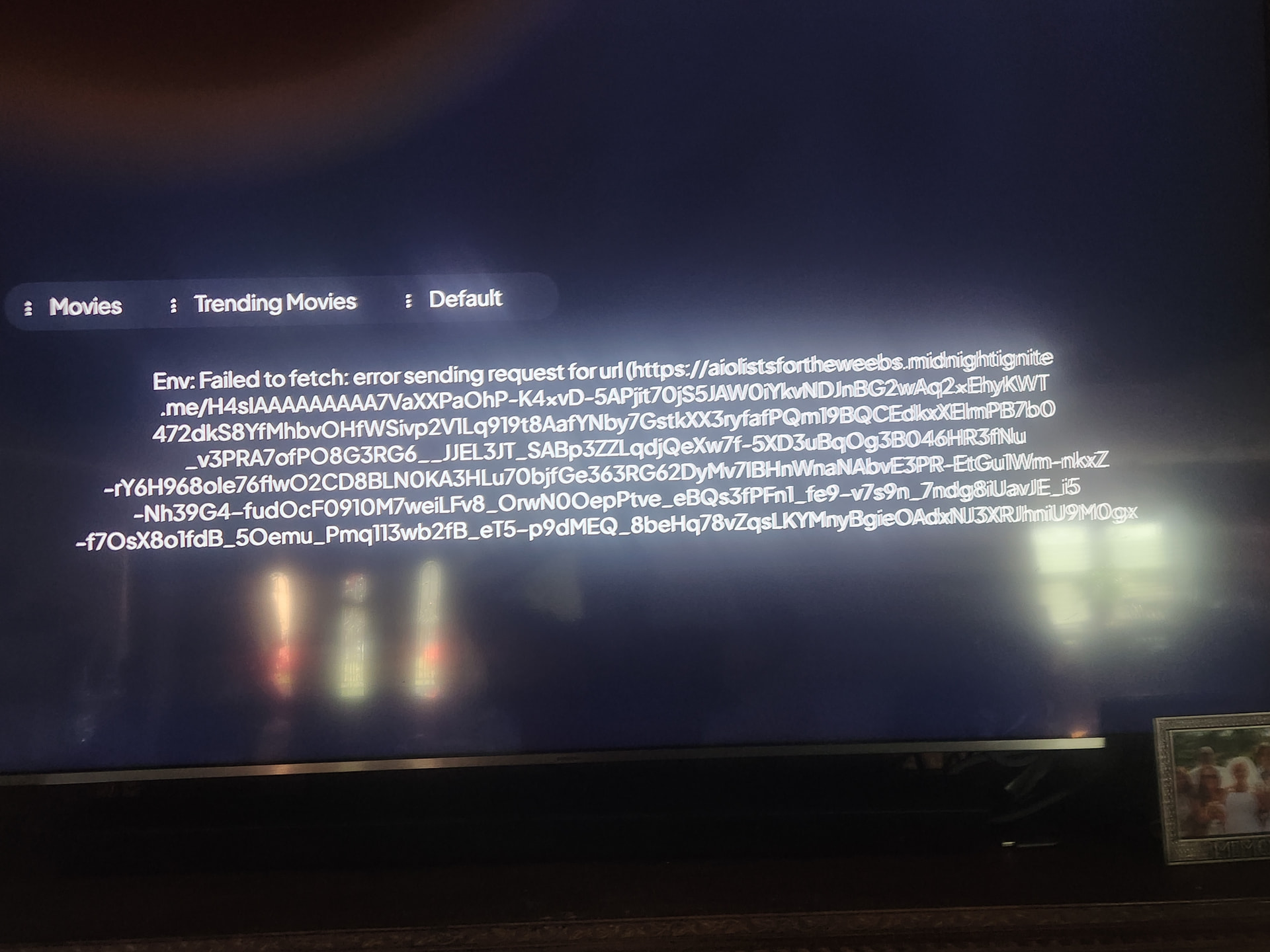
Thanks for pointing this out!
I’ve pinned the following topic regarding this.
Thanks for pointing this out!
I’ve pinned the following topic regarding this.
Does the message go away permanently or do you have to click OK every time the app loads?
You must click OK every time you open the app. Seeing how quick they are pushing out Stremio updates lately, this will probably be fixed in the next 48 hours.
Ok I’m not savvy,on how to side load could you inform me on how to please
What device is this on? When posting an issue please provide more information to get better answers. Have a buffer free day.

Use our Toolbox. You can install both 32-bit or 64-bit Stremio app from it. Video on how to use the Toolbox is linked below.
Depending on your device, I can think of 3 different ways but won’t get too specific since I don’t know your setup.
I’m sure there are more ways but that is what I know off the top of my head.
Yay, updated to 1.9.7 on firestick and had the message and click ok. I have successfully watched a movie and an espisode of Leverage Redemption without any buffering.
i’m so happy 
Mslea is so happy she posted twice lol
All joking aside great to hear it’s working for you, I may take the plunge to 1.97 today.
I am no coder but I did a dive into Stremio and did not notice any changes on my Buzz Powerstation 6, so my guess is that the updates may have fixed some device compatibility issues. This is great news @Mslea as I know you were disappointed in Stremio.
Sorry, didn’t mean to post my excitement twice. I was actually trying to edit my previous post.
I’m NOT gonna update mine for now. It works fine when I watch it the way it is.
Oon 4k pro.
Thanks for any help and the welcome
When you go to discover there are three sections at the top
: Movies : Your media : Default
Now if you click up one on the direction ring of your remote those three words will be highlighted. Now click Ok on your remote. Your Media should now be purple or another colour, and under that you should see the word “Popular” . Click down once on the direction ring and Popular is now that Purple colour and you should see a row of movies. Every one of those sections opens up new options the same way. Click the return arrow to back out of those choices and the first Movie poster is now your focus. Click right to move on to the next movie until you find one you want or use the search on the left at the top and enter a movie or series name then click search to the right of the keyboard and scroll down for choices. Don’t be afraid to click around to find out how to use Stremio. Now if you see a movie or series you want, scroll down to the poster and either click once to start it or long press OK to bring up a popup with two options. “Details and Add to library” highlight the one you want and click on it. Have a buffer free day.
I recently downloaded Streamio following the TroyPoint tutorial. When I try to use the search feature using either voice or typing in a title, no results appear. Does anyone know a fix for this?
Can you confirm that cinemata is in your addons? Did you use the tool to rearrange addons? Have you tried to force stop and clear the cache? Did you use the bootstrapper install? Do you have Stremio installed on say a tablet to do the configuration and check if the search there works? Have you tried completely deleting Stremio and doing a fresh install using the APK from Troy’s toolbox 
Is that on all sources or are other sources working? At this point with all your issues I would log out of Stremio, delete the app, and install the 1.9.7 Updated APK. Then log back in and see if you are having issues. You don’t need to reconfigure it, as all your setup is in the cloud, and applied to any Stremio app that you log into.
That addon no longer exists, so it fails to fetch. You can check this yourself by going to
https://aiolistsfortheweebs.midnightignite.me/
Like I said previously, AIOlists is no longer being supported or developed by anyone, you can switch to something like AIOmetadata for example: