I know that there is a “How to Install Projectivy Launcher” video, but thought that it might be a helpful idea to have a “version 2”. This more advanced guide could go a step deeper into other customizations within the app, as well as some of the neat features you can unlock with the Premium version (which costs about $8).
I’ve been happily using the [free] Projectivy Launcher on my Onn 4K Pro since last summer, and just came across some documentation the other day via Duck Guides which discussed some of the cool customizations that are possible. The two things that really jumped out at me, were:
- The * Projectivy Icon Pack: over 800 custom icons w/ transparent background
- The * Projectivy Wallpaper Overflight: provides Apple TV’s Aerials screen savers as video wallpapers for Projectivy Launcher
I did not see any guides here on the TP site for this, and so I spent a fair # of hours playing with different settings until I got it “right”. As I do with all of my customizations, I write the steps down so that I can easily repeat them in the future when setting up new devices. I wanted to share those steps here in case it’s helpful to others and saves you time.
Projectivy Premium:
- Unlock the premium version of Projectivy (roughly $8)
Installations:
-
Download & install the Projectivy Icon Pack (you can do this directly within Downloader)
-
Download & install the Projectivy Wallpaper Overflight via Downloader
Category & Cards Changes:
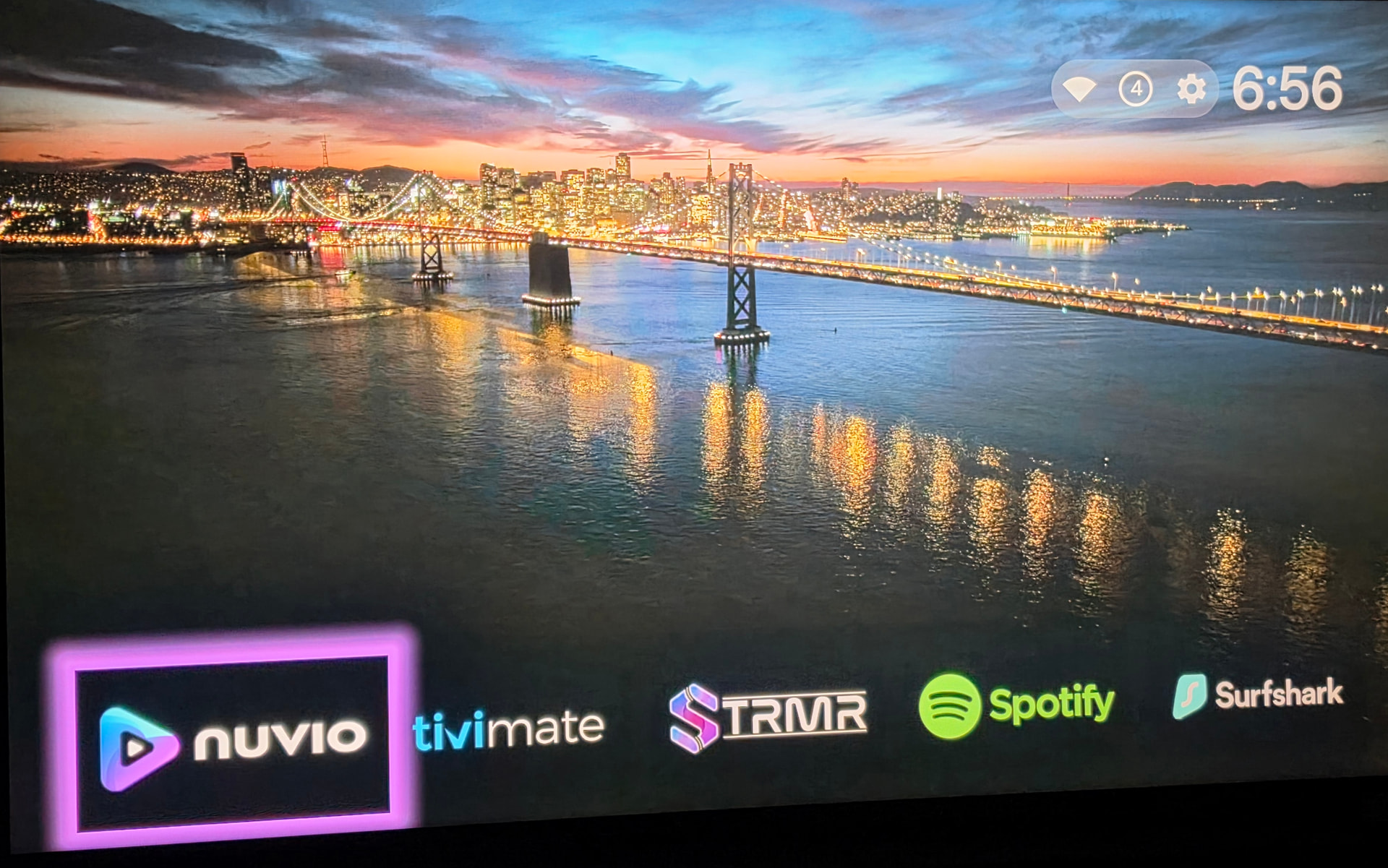
To take full advantage of the beautiful video wallpaper, I recommend moving your categories / channels to the bottom of the screen:
-
Projectivy Settings > Appearance > Categories / Channels:
- Show Title > off
- Top Margin > 80%
With the transparent icons, it’s helpful to make the card in focus (selected card) have a highlighted border to increase its visibility. Here’s how to do that:
-
Projectivy Settings > Appearance > Cards:
- Rounded Corners: 0
- Card Spacing: <I set mine to 26>
- background color > grey | Luminescence: -100 | Opacity: 5
- Focus card:
- Size: 3
- Focused Card Effect: Glow
- Glow Animation: None
- Icon Pack > Projectivy Icon Pack
Wallpaper Setup:
- Projectivy Settings > Wallpaper > Launcher Wallpaper > Overflight
*Adjust the update delay setting if desired. By setting it to “1”, the video wallpaper will change to something new every 1 minute.
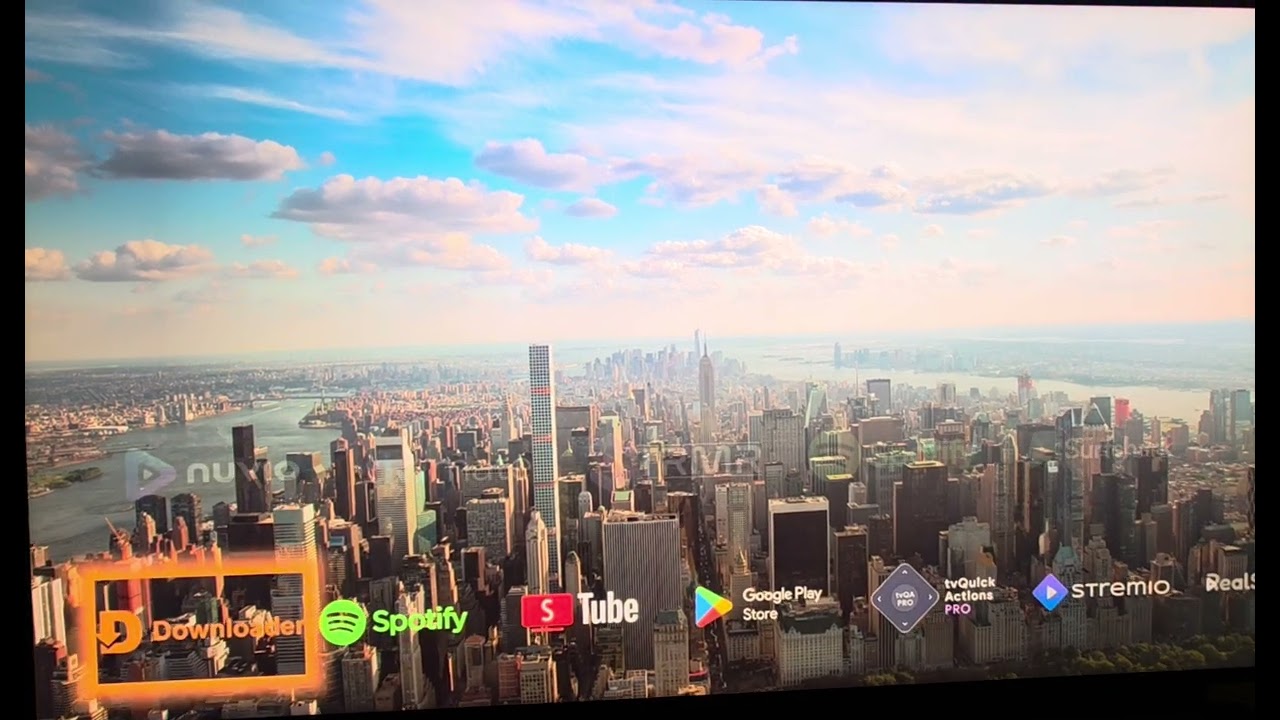
I’ve included an example image (above) of what this configuration looks like with the video wallpapers, the top margin adjustment, and card glow effect. The following (brief) video demo also demonstrates how it looks when you’re navigating the launcher with these settings applied:
These are just some of the many customizations that are possible within Projectivy to take the launcher to the “next level”. It’d be great if TP would make an “advanced” configuration guide for people who may want to take the basics one step further using the tips above as well as the other options worth considering 